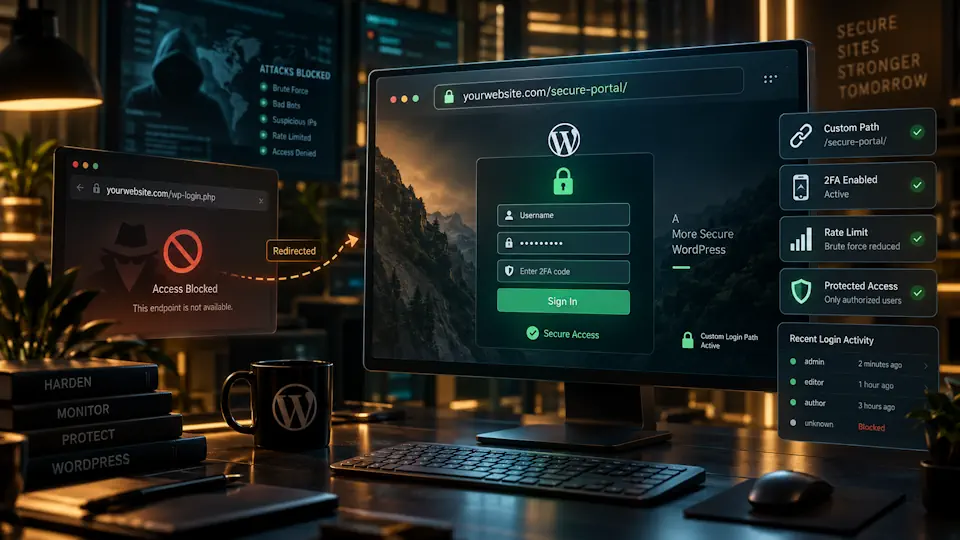
Changing the default WordPress login URL is a common hardening step used to reduce automated login noise and hide the standard /wp-login.php and /wp-admin/ entry points from basic bots and scanners.
It is important to understand what this change actually does. A custom login URL can reduce opportunistic brute-force traffic and make automated scanning less effective, but it is not a replacement for strong passwords, multi-factor authentication, rate limiting, updates or a firewall.
This guide explains how to change the WordPress login URL safely, when it makes sense, which methods are available, what to test afterwards, and which security mistakes to avoid.
What does changing the WordPress login URL mean?
By default, WordPress exposes well-known login paths such as:
/wp-login.php/wp-admin/
Because these URLs are predictable, automated bots can find them easily and attempt credential stuffing, password guessing or generic login scans.
Changing the login URL means introducing a custom entry point, for example:
https://example.com/my-secure-login/while blocking or redirecting direct access to the default login endpoint for unauthenticated users.
Why change the WordPress login URL?
The main benefit is a reduction in automated login noise.
A custom login URL can help with:
- Reducing low-effort brute-force attempts against the default login path.
- Lowering unnecessary login requests generated by generic bots.
- Reducing noise in security logs.
- Making opportunistic scans less effective.
- Complementing rate limiting and other WordPress hardening measures.
For managed WordPress environments, this can be useful because fewer automated requests may mean fewer unnecessary PHP executions and fewer repetitive security events.
What changing the login URL does not protect against
This is one of the most important parts of the topic.
A custom login URL does not protect you from:
- Weak passwords.
- Credential theft.
- Compromised administrator accounts.
- Vulnerable plugins or themes.
- Malware already present on the server.
- Attackers who discover the custom URL.
- XML-RPC abuse if XML-RPC is still exposed and used for authentication-related attacks.
- Application vulnerabilities elsewhere in WordPress.
The login URL should therefore be treated as a small hardening layer rather than the foundation of WordPress security.
Is changing the WordPress login URL security through obscurity?
Partly, yes. The technique relies on making a known entry point less obvious. That is why it should never be your only protection.
However, not every obscurity measure is useless. Reducing exposure to generic automated traffic can still have practical value when combined with stronger controls.
A more complete login-security stack may include:
- Strong unique administrator passwords.
- Multi-factor authentication.
- Rate limiting or login-attempt restrictions.
- Firewall or WAF rules.
- Automatic updates and vulnerability management.
- Monitoring of successful and failed logins.
- A custom login URL as an additional layer.
Should you change the WordPress login URL?
For many public WordPress sites, changing the login URL is reasonable if it is implemented cleanly and does not interfere with integrations.
It is particularly useful when:
- The site receives a large number of failed login attempts.
- You manage many WordPress installations and want to reduce bot noise.
- You already use strong authentication controls and want an extra hardening layer.
- The website does not depend on third-party services that require direct access to the default login URL.
It may be less useful if your hosting provider already protects the login path aggressively at the edge or if an external SSO system replaces normal WordPress login behavior.
The safest way to change the WordPress login URL
For most site owners, the safest method is to use a mature plugin or hosting-level feature designed specifically for this purpose.
That approach is generally preferable to editing WordPress core files, because core modifications will be overwritten by updates and can break authentication behavior.
Method 1: use a dedicated login URL plugin
A dedicated plugin can remap the login endpoint without modifying WordPress core files.
A typical workflow is:
- Install a reputable login URL or security plugin.
- Choose a custom slug that is not easy to guess.
- Save the new login URL securely.
- Test the new URL in a private browser window.
- Confirm that the default login path no longer exposes the normal form.
- Verify password reset and logout behavior.
Example:
https://example.com/secure-access-portal/Avoid slugs such as /login/, /admin-login/ or /secret-login/. They are still easy to guess and provide very little benefit.
Method 2: use a broader WordPress security plugin
Some security plugins include login URL customization as one part of a broader hardening feature set.
This can be useful when the same plugin also manages:
- Login rate limiting.
- Two-factor authentication.
- Brute-force protection.
- Firewall rules.
- Login monitoring.
The advantage is centralized management. The disadvantage is that a larger security plugin may introduce features you do not need. For performance-sensitive managed WordPress setups, it is worth deciding whether the broader feature set is justified.
Method 3: hosting or reverse-proxy rules
Managed WordPress hosts, reverse proxies and WAF platforms can also restrict or transform access to login routes.
Examples include:
- Allowing
/wp-login.phponly from trusted IP addresses. - Adding HTTP authentication before the WordPress login form.
- Applying rate limits at the edge.
- Blocking traffic based on geolocation or bot reputation.
These approaches can be stronger than a simple URL rename because they stop unwanted traffic before WordPress processes the request.
Do not rename wp-login.php directly
You should not rename or edit the WordPress core wp-login.php file manually.
Doing so can create several problems:
- WordPress updates may overwrite your changes.
- Core authentication flows may break.
- Password-reset and logout URLs may stop working.
- Plugins may expect standard WordPress authentication hooks.
- Troubleshooting becomes harder.
The correct approach is to change routing behavior through a plugin, server rule or managed hosting feature, not by modifying core files.
How to choose a good custom login URL
A custom login path should be memorable to authorized users but not trivial for bots to guess.
| Example | Quality | Reason |
|---|---|---|
/login/ | Poor | Extremely obvious |
/admin-login/ | Poor | Common and easy to scan |
/secure-login/ | Weak | Still predictable |
/team-access-47/ | Better | Less obvious and still usable |
/northgate-access/ | Better | Custom and easy for your team to remember |
The goal is not to create a cryptographic secret. The goal is simply to avoid generic paths that bots already test automatically.
What happens to /wp-admin/ after changing the login URL?
Authenticated users should normally still be able to access the WordPress dashboard through /wp-admin/.
For unauthenticated users, behavior depends on the plugin or configuration. The request may:
- Return a 404 response.
- Redirect to the homepage.
- Redirect to another custom page.
- Return a forbidden response.
The important part is that unauthenticated access should not expose the normal WordPress login form through the default route.
What about wp-login.php?
The same principle applies to /wp-login.php.
A properly configured login URL plugin generally intercepts direct access and prevents the standard login form from being displayed unless the request uses the custom route.
Test this explicitly after configuration. Do not assume the default endpoint is hidden simply because the custom URL works.
Test password reset and lost password flows
Changing the login route affects more than the main login form.
You should test:
- Normal administrator login.
- Logout.
- Lost password.
- Password reset email links.
- New user registration if enabled.
- WooCommerce My Account login.
- Any frontend login forms.
A plugin that correctly integrates with WordPress should preserve these flows, but testing is essential.
Changing the login URL on WooCommerce
WooCommerce requires extra care because customers often authenticate through the frontend My Account page rather than the WordPress backend login form.
Changing the backend login URL should not break normal customer login, but test:
- Customer login.
- Customer registration.
- Password reset.
- Checkout account creation.
- Administrator login.
If the plugin redirects all WordPress authentication requests too aggressively, it may interfere with WooCommerce account flows.
What about XML-RPC?
Changing the login URL does not automatically protect the XML-RPC endpoint.
If xmlrpc.php is enabled, it may still be accessible separately. Some WordPress integrations rely on XML-RPC, while others do not.
If your site does not need XML-RPC, you may choose to disable or restrict it. If you do need it, protect it through appropriate rate limiting and security controls instead of assuming the custom login URL covers it.
Login URL changes and REST API authentication
WordPress REST API endpoints are separate from the standard login page. Changing the login URL does not automatically disable or secure API-based authentication methods.
If your site uses application passwords, custom APIs or third-party integrations, review those separately.
A secure WordPress configuration should consider every authentication surface, not only the visible administrator login form.
Login URL changes and caching
The custom login URL should generally not be cached like a normal public page.
If you use:
- A page-cache plugin.
- A CDN.
- Reverse-proxy caching.
- Server-level caching.
make sure authentication routes are excluded from public caching.
Dynamic WordPress login responses should remain uncached to avoid exposing session-dependent content or creating inconsistent authentication behavior.
Login URL changes and Cloudflare or another CDN
A reverse-proxy CDN can complement a custom login URL with rate limiting, bot filtering or WAF rules.
For example, the custom login path can be protected with:
- Stricter rate limits.
- Managed challenge rules.
- IP restrictions.
- Country restrictions where appropriate.
This can be more effective than relying on the hidden URL alone because suspicious requests are filtered before they reach WordPress.
How to avoid locking yourself out
The most common practical risk is forgetting the new URL or creating a plugin conflict.
Before changing the login route:
- Keep an active administrator session open in another browser tab.
- Save the custom URL in your password manager.
- Make sure you have FTP, SFTP, SSH or hosting file-manager access.
- Know how to disable the plugin manually if needed.
- Test the new URL in a private browser window before logging out.
If the plugin causes a lockout, you can usually disable it by renaming its directory under wp-content/plugins/ using file-manager or SFTP access.
How to recover the WordPress login URL if you forget it
If you forget the custom login URL, there are several recovery options.
- Check the settings stored by your security or login plugin.
- Search your password manager or internal documentation.
- Disable the plugin temporarily through SFTP or hosting file manager.
- Use WP-CLI if available to deactivate the plugin.
Once the plugin is disabled, the normal WordPress login route usually becomes available again.
How to verify that the custom login URL works correctly
After implementation, test the site from a logged-out or private browser session.
Check the following:
- The custom URL displays the expected login form.
/wp-login.phpdoes not expose the normal login form./wp-admin/behaves correctly for unauthenticated users.- Password reset works.
- Logout works.
- WooCommerce login works if applicable.
- Security logs show fewer generic brute-force requests over time.
Common mistakes when changing the WordPress login URL
- Treating the custom URL as your main security control. It should only be one layer.
- Choosing an obvious path. Generic names are easy for bots to guess.
- Editing wp-login.php directly. Core-file modifications are fragile and unnecessary.
- Forgetting integrations. WooCommerce, SSO, membership plugins and password reset flows need testing.
- Caching the login page. Authentication pages should not be publicly cached.
- Ignoring XML-RPC and API authentication. Other login surfaces may still exist.
- Not documenting the new route. Future administrators need a reliable way to recover access.
- Using multiple security plugins with overlapping login controls. Duplicate rules can create redirect loops or lockouts.
A stronger WordPress login security checklist
Changing the login URL works best as part of a broader authentication strategy.
- Use strong, unique administrator passwords.
- Enable multi-factor authentication.
- Limit login attempts or add rate limiting.
- Use a WAF or edge security layer where appropriate.
- Remove unused administrator accounts.
- Keep WordPress, plugins and themes updated.
- Monitor successful and failed login attempts.
- Disable or restrict XML-RPC if it is not needed.
- Change the default login URL as an additional hardening layer.
Managed WordPress perspective
For a managed WordPress environment, changing the login URL can be useful because the objective is not only to block attacks, but also to reduce unnecessary requests and keep the administrative surface cleaner.
A good managed setup combines several layers:
- Server and edge-level protection.
- WordPress hardening.
- Secure authentication.
- Automated updates.
- Backups and monitoring.
- Performance optimization.
The login URL is therefore best treated as one small operational control inside a larger security model.
Frequently asked questions about changing the WordPress login URL
Can I change the WordPress login URL without a plugin?
Yes, but server-level rewrites and custom code require more maintenance and testing. For most WordPress sites, a dedicated plugin or managed hosting feature is safer than editing core files.
Does changing the login URL stop brute-force attacks?
It can reduce generic automated attempts against the default route, but it does not stop targeted attacks if the custom URL is discovered. Use rate limiting, strong passwords and multi-factor authentication as stronger controls.
Should I rename wp-login.php?
No. Do not rename or edit the WordPress core login file. Use routing, plugin or server-level controls instead.
Will changing the login URL break wp-admin?
Normally no. Authenticated users should still be able to use /wp-admin/. Unauthenticated behavior depends on the plugin or server configuration.
Will this affect WooCommerce customers?
It should not if the solution is compatible with WooCommerce, but test the My Account login, registration and password-reset flows after making the change.
Does changing the login URL improve WordPress security?
It can reduce opportunistic scanning and brute-force noise, but it is only a minor hardening layer. Strong authentication, updates, rate limiting and firewall protection are more important.
What should I do if I forget the custom login URL?
Check your password manager or documentation. If necessary, disable the login URL plugin through SFTP, hosting file manager or WP-CLI so the default WordPress login route becomes available again.
Conclusion
Changing the WordPress login URL can be a useful hardening measure when implemented correctly. It reduces exposure to generic bots and can significantly lower automated login noise on public WordPress sites.
The key is to keep expectations realistic. A hidden login route does not replace secure credentials, two-factor authentication, rate limiting, updates or a firewall. It simply removes one predictable entry point from the most basic automated scans.
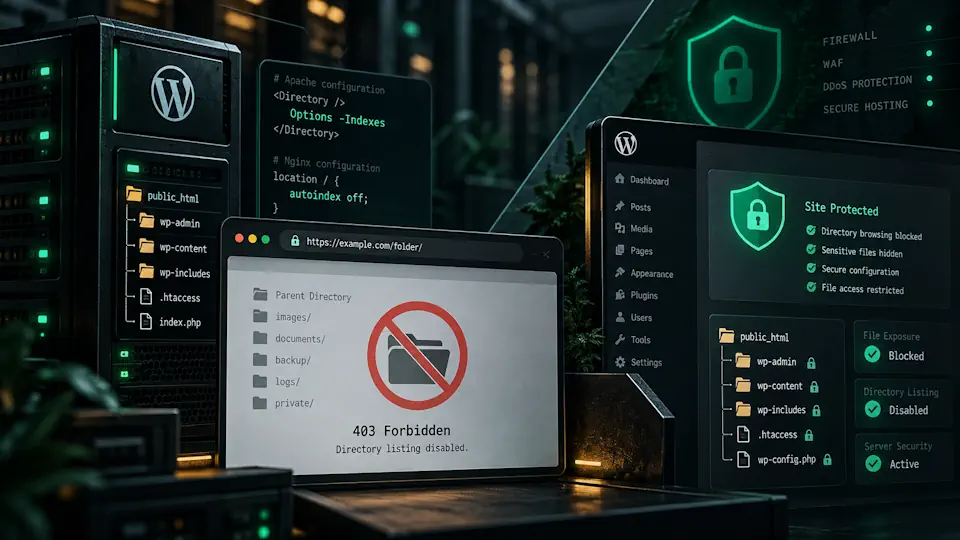
For a stronger security baseline, combine this technique with our guide to disabling directory browsing in WordPress and the other WordPress hardening controls used throughout a managed WordPress stack.