
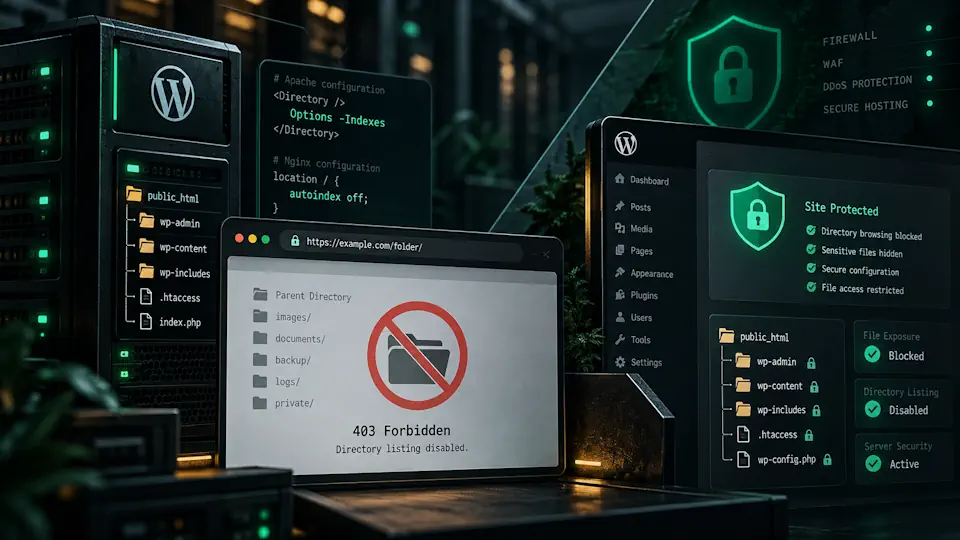
Directory browsing can expose a list of files and folders when a visitor opens a directory that does not contain an index file and the web server is configured to generate a listing. On a WordPress site, that can reveal plugin folders, upload paths, backup files or other resources that were never intended to be browsed as a directory index.
Disabling directory browsing is therefore a simple WordPress hardening step. It does not replace a firewall, updates, backups or malware scanning, but it reduces unnecessary information disclosure and removes one more way for an attacker to inspect the site structure.
This guide explains what directory browsing is, how to test whether it is enabled, how to disable directory browsing in WordPress on Apache or Nginx, when a plugin or hosting platform may already handle it, and which common mistakes to avoid.
What is directory browsing in WordPress?
Directory browsing, also called directory listing, occurs when a web server displays the contents of a folder instead of serving an index file or returning an error.
For example, imagine a visitor opens a URL such as:
https://example.com/wp-content/uploads/If directory listing is enabled and the server cannot find a suitable index file, it may generate a page showing filenames, subdirectories, dates and sometimes file sizes.
Depending on the site structure, similar behavior could expose directories under:
/wp-content/uploads//wp-content/plugins//wp-content/themes/- Custom plugin or application directories.
- Backup or staging folders accidentally left inside the document root.
The presence of a visible listing does not automatically mean the site is compromised. However, it can reveal information that makes reconnaissance easier and may expose files that should not be publicly discoverable.
Why disable directory browsing?
WordPress itself relies on many publicly accessible files. The security issue is not that visitors can access legitimate CSS, JavaScript or media files. The issue is that a generated directory index can reveal a structured inventory of what exists inside a folder.
Disabling directory browsing can help by:
- Reducing information disclosure.
- Hiding filename inventories that would otherwise be visible at a glance.
- Making accidental backup or temporary files less discoverable.
- Removing an unnecessary web-server feature from public access.
- Supporting a broader WordPress hardening baseline.
It is best viewed as a defensive configuration measure rather than a complete security solution.
Directory browsing vs direct file access
This distinction is important.
Turning off directory browsing prevents the server from automatically generating a list of files in a directory. It does not automatically block direct access to a file when someone already knows or guesses its exact URL.
For example, if directory listing is disabled, this URL might no longer display a file list:
https://example.com/private-folder/But a directly accessible file could still load if its URL is known:
https://example.com/private-folder/example.txtIf a file must not be publicly accessible, use proper access controls, move it outside the public document root, or configure the server to deny access. Directory browsing should not be treated as a substitute for file permissions or authorization.
How to check if directory browsing is enabled
The easiest test is to open a directory URL that does not contain an index file and see what the server returns.
On a WordPress installation, you can test a known directory carefully, for example:
https://example.com/wp-content/uploads/Possible outcomes include:
| Response | What it usually means |
|---|---|
| A generated list of files and folders | Directory browsing is enabled for that location |
| 403 Forbidden | Directory browsing is disabled or access is explicitly denied |
| 404 Not Found | The server, proxy or application may hide or rewrite the request |
| An index page | The directory contains or resolves to an index file |
| A WordPress-generated page | Rewrite rules may be handling the request |
Do not assume a 200 response always means directory browsing is enabled. Check whether the page is an actual server-generated file listing.
How to disable directory browsing in WordPress with .htaccess
On Apache-compatible hosting, the most common method is adding the following directive to the site's .htaccess file:
Options -IndexesThe Indexes option is what allows Apache to generate a formatted listing when a directory does not have an appropriate index file. Removing that option disables the listing behavior for the applicable directory scope.
A practical placement in a WordPress .htaccess file is usually outside the WordPress-generated rewrite block, for example:
# Disable directory browsing
Options -Indexes

# BEGIN WordPress
<IfModule mod_rewrite.c>
RewriteEngine On
RewriteRule .* - [E=HTTP_AUTHORIZATION:%{HTTP:Authorization}]
RewriteBase /
RewriteRule ^index\.php$ - [L]
RewriteCond %{REQUEST_FILENAME} !-f
RewriteCond %{REQUEST_FILENAME} !-d
RewriteRule . /index.php [L]
</IfModule>
# END WordPress
The exact WordPress rewrite block can vary by installation, version, hosting environment or Multisite configuration. The important part is the standalone:
Options -IndexesBefore editing .htaccess, keep a copy of the original file so you can restore it if the server returns an error.
Where is the WordPress .htaccess file?
On a standard Apache-based WordPress installation, .htaccess is usually located in the same directory as:
wp-config.phpwp-admin/wp-content/wp-includes/
Because the filename begins with a dot, some file managers hide it by default. In cPanel File Manager, SFTP clients and other tools, enable the option to show hidden files if you cannot see it.
If the site is running behind Nginx or another stack that does not use .htaccess, editing this file will not control directory listing at the Nginx layer.
How to disable directory browsing in Nginx
Nginx controls directory listing with the autoindex directive. Its default value is off, so many Nginx installations already do not show directory listings unless the feature was explicitly enabled.
A server or location block can state the behavior explicitly:
location / {
    autoindex off;
}
After editing an Nginx configuration, validate the configuration and reload the service using the normal server-administration workflow.
On managed hosting you may not have access to the Nginx configuration. In that case, check the hosting control panel or ask the provider whether directory listing is already disabled.
What happens when there is no index.php or index.html?
Web servers normally look for a directory index file when a visitor requests a folder. Common index filenames include:
index.php
index.html
If an index file exists, the server serves it. If there is no matching index file, the behavior depends on the server configuration.
With directory listing enabled, the server may generate a file list. With listing disabled, it normally returns an error such as 403 instead of exposing the folder contents.
This is why adding empty index.php files to directories was historically used as a simple mitigation. It can hide a listing in that particular folder, but server-level configuration is generally cleaner because it applies consistently across the protected directory tree.
Should you add empty index.php files to WordPress folders?
You may encounter older tutorials recommending an empty index.php file inside every directory.
This method can prevent a listing from appearing in a specific directory because the web server serves the index file instead. However, it has limitations:
- It only protects directories where the file exists.
- New directories may not contain one.
- It does not change the underlying server configuration.
- It can create unnecessary maintenance work.
Using Options -Indexes on Apache or keeping Nginx autoindex off is generally a more consistent solution.
Can a WordPress security plugin disable directory browsing?
Yes. Some WordPress security plugins can add server rules that disable directory browsing.
On Apache, this often means the plugin writes:
Options -Indexesto .htaccess or a related configuration file.
If your security plugin already manages this setting, avoid adding duplicate rules unless you understand how the plugin writes and updates its configuration. Plugin-generated sections may be overwritten when settings change.
For managed WordPress environments, it can be cleaner to enforce this at the hosting or server layer so the policy does not depend on a plugin remaining active.
Does disabling directory browsing improve WordPress security?
Yes, but only in a limited and specific way.
It reduces passive information disclosure. An attacker or automated scanner cannot simply open an exposed folder and receive a convenient index of filenames from the server.
It does not prevent:
- Exploitation of vulnerable plugins or themes.
- Credential attacks.
- Malware execution.
- Direct access to publicly readable files whose URLs are already known.
- WordPress version or plugin discovery through other techniques.
Directory browsing should therefore be part of a layered security strategy.
Other WordPress hardening measures that matter more
Disabling directory listing is useful, but several controls have greater impact on real-world WordPress security.
- Keep WordPress core, plugins and themes updated.
- Remove unused plugins and themes.
- Use strong passwords and multifactor authentication where appropriate.
- Limit administrator accounts.
- Run a WordPress firewall or equivalent perimeter protection.
- Maintain reliable off-site backups.
- Monitor file changes and malware alerts.
- Restrict PHP execution in directories where PHP should never run, such as uploads, when supported by the hosting stack.
- Protect configuration and backup files from public access.
Directory browsing fits into this checklist as a low-cost hardening improvement, not as the central security control.
Directory browsing and wp-content/uploads
The WordPress uploads directory deserves special attention because it can contain a large number of publicly accessible media files.
Public images need to remain accessible so pages can display them, but visitors generally do not need a generated directory index showing all files inside an uploads folder.
Disabling directory browsing therefore allows normal media URLs such as:
https://example.com/wp-content/uploads/2026/09/image.webpwhile preventing the server from exposing a convenient directory listing at:
https://example.com/wp-content/uploads/2026/09/Remember that disabling the listing does not make uploaded files private. If a media file must be private, WordPress needs a separate protected-delivery or authorization mechanism.
Directory browsing and WordPress plugins or themes
Plugin and theme files often need to be publicly readable because CSS, JavaScript, fonts or images are loaded directly by the browser.
The objective is not to block normal public assets. It is to prevent the web server from generating a browsable inventory of the directory.
A secure configuration therefore distinguishes between:
- Allowing access to required frontend assets.
- Preventing server-generated directory indexes.
- Restricting sensitive files that should never be publicly accessible.
What if Options -Indexes causes a 500 error?
Some hosts restrict which Apache directives are allowed inside .htaccess. If adding:
Options -Indexescauses an HTTP 500 error, restore the previous file immediately and check the hosting documentation or contact the provider.
The host may:
- Disable directory listing globally already.
- Disallow the
Optionsdirective in.htaccess. - Require the setting to be changed from a control panel.
- Use Nginx or another front-end server where Apache rules do not control the request.
Do not keep retrying random directives on a production site without understanding the server stack.
How to verify the change
After disabling directory browsing:
- Open a directory URL that previously showed a listing.
- Use a private/incognito browser window if caching may interfere.
- Confirm that the generated file list no longer appears.
- Check normal site pages and media files to make sure they still work.
- If a CDN or reverse proxy is in front of the site, purge relevant caches if necessary.
A 403 response is a common and acceptable result for a directory that has no index file and cannot be listed.
Apache, Nginx and LiteSpeed differences
| Server | Directory listing control | Typical WordPress approach |
|---|---|---|
| Apache | Options -Indexes | Add to .htaccess if allowed |
| Nginx | autoindex off; | Configure in server or location block; usually already off by default |
| LiteSpeed | Apache-compatible configuration in many environments | .htaccess rules often work, but hosting policy still applies |
| Managed WordPress | Provider-controlled | Check host documentation before adding duplicate rules |
Understanding the web-server layer is important because WordPress itself does not control every aspect of directory listing behavior.
Directory browsing in a managed WordPress environment
For a managed WordPress platform, this type of security setting is best treated as part of a repeatable baseline rather than something configured manually on every site.
A managed setup can standardize:
- Directory listing disabled.
- Safe filesystem permissions.
- Restricted access to configuration files.
- PHP execution controls where appropriate.
- Firewall and rate-limit rules.
- Automated updates and vulnerability monitoring.
- Backups and restore testing.
This approach reduces configuration drift and ensures the same security expectations are applied consistently across multiple WordPress installations.
Common mistakes when disabling directory browsing
- Assuming it makes files private. Direct file URLs may still be accessible.
- Editing the wrong server layer. Apache rules do not necessarily control an Nginx reverse proxy.
- Placing custom rules inside a plugin-managed block. The plugin may overwrite them later.
- Using empty index files everywhere instead of a server-wide policy. This is harder to maintain.
- Not keeping a backup of .htaccess. A syntax or permission error can cause a 500 response.
- Testing only the homepage. You need to test an actual directory URL.
- Thinking this replaces WordPress security tools and updates. It is only one hardening measure.
A practical WordPress directory-browsing checklist
- Identify the server stack: Apache, Nginx, LiteSpeed or managed hosting.
- Test whether a directory listing is actually exposed.
- On Apache-compatible hosting, use
Options -Indexesif supported. - On Nginx, keep
autoindex off. - Avoid duplicate rules if a security plugin or host already enforces the setting.
- Confirm normal media, CSS and JavaScript files still load.
- Protect sensitive files separately rather than relying on directory-listing settings.
- Keep WordPress, plugins and themes updated.
- Review the configuration again after migrations or hosting changes.
Frequently asked questions about disabling directory browsing in WordPress
How do I disable directory browsing in WordPress?
On Apache-compatible hosting, add Options -Indexes to the site's .htaccess file if the host permits the directive. On Nginx, directory listing is controlled with autoindex and is normally disabled with autoindex off;.
Is directory browsing a WordPress vulnerability?
Directory listing is primarily a web-server configuration issue rather than a WordPress core vulnerability. It can expose useful information about files and folders, so disabling it is considered a sensible hardening measure.
Does Options -Indexes block access to images?
No. It prevents Apache from generating a directory index. Directly requested files such as images, CSS or JavaScript can still be served normally when their URLs are known and file permissions allow access.
Should I disable directory browsing for wp-content/uploads?
Yes, in most normal public WordPress installations there is little reason to expose a generated listing of uploaded files. The individual media files can remain publicly accessible while the directory index is disabled.
Do I need a plugin to disable directory browsing?
No. It is fundamentally a web-server setting. A plugin may help configure it on supported Apache environments, but it is not required if you can manage the server or hosting configuration directly.
Is autoindex enabled by default in Nginx?
No. Nginx documents autoindex off as the default. Directory listings usually appear only when autoindex has been explicitly enabled for a relevant scope.
What response should I see after disabling directory browsing?
A directory without an index file may return 403 Forbidden, 404, or another server-specific response. The key result is that the web server no longer exposes a generated listing of the directory contents.
Will disabling directory browsing improve SEO?
It is primarily a security and server-hardening measure, not an SEO optimization. Its value comes from reducing unnecessary information exposure and keeping the server configuration cleaner.
Conclusion
Disabling directory browsing is a small but worthwhile WordPress hardening measure. It prevents the web server from exposing automatically generated file listings when a directory does not contain an appropriate index file.
On Apache-compatible hosting, the standard approach is usually Options -Indexes. On Nginx, keep autoindex disabled. In managed environments, the provider may already enforce the setting at the server level.
Most importantly, remember what this setting does and does not do. It reduces directory-level information disclosure, but it does not make public files private and it does not replace updates, access controls, backups, firewall protection or vulnerability monitoring.
For a secure WordPress setup, treat directory browsing as one item in a broader managed security baseline rather than a standalone fix.